

Key takeaways
- Compare drawing tablets on active area, pen pressure levels, tilt support and connectivity to draw, sketch, edit photos and take notes on any computer.
As an Amazon Associate we earn from qualifying purchases.
Disclosure: This article contains affiliate links. If you buy through these links, we may earn a commission at no extra cost to you.
Our top pick: Wacom Intuos Small (CTL4100, Wired). Runner-up: Huion Inspiroy H640P.
A drawing tablet changes how a computer feels to work on. Instead of dragging a mouse through every curve, you hold a pen, press harder for a heavier line, lighten up for a faint one, and tilt the nib to shade like a pencil on paper.
Screenless pen tablets are flat pads: you draw on the pad while looking at your monitor. They take a short adjustment, then become fast, precise, and easy on desk space. Pen displays put the image under the pen, so you draw directly on a screen. They feel more immediate, but need more desk room and a video connection. Neither type works alone: every pick below needs a Windows, Mac, Chromebook, or Linux computer, and some also work with Android devices. The five picks differ in size, pen, and controls, so match them to the work you actually do.
How to Choose a Drawing Tablet
Active area and desk fit
Active area is the part of the surface the pen can use, always smaller than the tablet body. A small area around 6 by 4 inches suits notes, photo retouching, signatures, and a single laptop screen, and keeps hand movement short. An area around 10 by 6 inches gives your arm room for long strokes and maps better to a large or dual-monitor setup. On a pen display the active area is the screen itself, so a 13.3-inch display leaves room for toolbars. Measure beside your keyboard and allow room for the cable.
Pen pressure, tilt, and report rate
At 4,096 pressure levels you already get smooth control over line weight and opacity. At 8,192 levels the lightest touches register more delicately, helping inking and soft brushes. At 16,384 levels the pen resolves very fine changes in force, though brush settings matter as much as the number. Tilt support detects the angle of the pen, so a tilted nib lays down a broad, soft edge like the side of a pencil. If you shade, paint, or letter, tilt is worth having; for notes and retouching you may rarely use it. Report rate, in reports per second, describes how often position is reported: at or above about 200, fast strokes feel smooth.
Connectivity and compatibility
Most screenless tablets connect with a single USB cable; newer models use USB-C on the tablet end with an adapter in the box for older ports. Pen displays need video too. Older designs use a combined cable splitting into HDMI, USB, and power at the computer end, while newer designs can run over one full-featured USB-C connection when the computer supports video over that port. Check your ports before ordering a display, and confirm system support in the driver, not just on the box. Windows and Mac support is standard here. Chromebook pen input is broader than Chromebook shortcut-key support, which often needs a Windows or Mac driver.
Keys, dials, and everyday details
Shortcut keys keep your other hand off the keyboard for undo, brush size, zoom, and tool switches; six to eight keys cover most workflows. A dial adds smooth zoom and brush control that buttons cannot match. Every pick here uses a battery-free pen, so there is never a pen to charge, and spare nibs matter because nibs wear down.
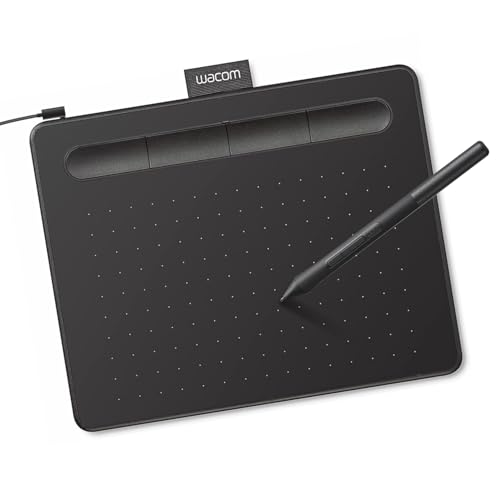
Wacom Intuos Small (CTL4100, Wired)
Specs
- Active area: 6.0 x 3.7 inches (152 x 95 mm)
- Pen pressure levels: 4,096 levels, Wacom Pen 4K, battery-free
- Resolution: 2,540 lines per inch
- Shortcut keys: 4 customizable ExpressKeys
- Connectivity: USB cable, wired
- Size and weight: 200 x 160 x 8.8 mm, 230 g
- Compatibility: Windows, macOS, Chromebook, select Android devices
The Intuos Small is the tablet to learn on when desk space is tight and dependable drivers matter more than headline numbers. Retouching photos, annotating documents, signing forms, and writing notes all involve short, controlled movements, and its small mapping area makes those movements quick.
The Pen 4K handles line weight and brush opacity smoothly at 4,096 levels. It has no tilt function, so it suits drawing, inking, editing, and handwriting better than pencil-style shading. Four ExpressKeys cover undo, redo, and two favorite tools. Painters who want large arm movements or tilt should step up below; anyone who wants a first pen that simply works every time will see why this model stays popular.
Huion Inspiroy H640P

Specs
- Active area: 6.3 x 3.9 inches
- Pen pressure levels: 8,192 levels, PW100 battery-free stylus
- Resolution: 5,080 lines per inch
- Report rate: 233 reports per second
- Shortcut keys: 6 programmable press keys
- Connectivity: USB, OTG adapter support for Android
- Size and weight: 260 x 147.7 x 8 mm, 277 g
- Compatibility: Windows, macOS, Linux, Android 6.0 or later
The Inspiroy H640P keeps a compact footprint like the Intuos Small and doubles pressure to 8,192 levels, with much finer 5,080 lines per inch resolution. That makes it a strong pick for careful line work, handwriting, and photo editing on a small desk. Light strokes register delicately, and the 233 reports per second rate keeps fast handwriting and sketch lines from feeling stepped.
Six programmable keys run down the side, giving two extra shortcuts and a layout many left-handed users find easy to flip in the driver. The compromises are size and tilt: this is a travel format, not a canvas for sweeping strokes, and the pen offers no tilt shading. For drawing, editing, and handwritten work at a study desk, it packs a lot of pen performance into very little space.
XPPen Deco 01 V3

Specs
- Active area: 10 x 6.25 inches
- Pen pressure levels: 16,384 levels, battery-free stylus
- Tilt support: up to 60 degrees
- Shortcut keys: 8 customizable shortcut keys
- Connectivity: USB-C cable, USB adapter included
- Thickness: 8 mm
- Compatibility: Windows, macOS, ChromeOS, Linux, Android 10.0 or later
The Deco 01 V3 is the large screenless option, and the jump in working room is the first thing you feel. A 10 by 6.25 inch area lets you draw from the shoulder instead of only the wrist, producing longer, calmer lines and a mapping that feels proportionate on a large monitor. For painting, comic work, design layouts, and marking up wide documents in online lessons, that space outweighs any single pen statistic.
Its pen reports 16,384 pressure levels with tilt to 60 degrees. In a brush that responds to angle, tilting lays down a softer, wider mark for shading, then returning upright restores a fine point for detail. Eight keys support right- and left-handed layouts. The tablet is only 8 mm thick despite its size, though it is a desk resident rather than a sleeve accessory, so measure for it.
Wacom One 13 Pen Display (DTC133)

Specs
- Display and active area: 13.3-inch screen, 1920 x 1080, 11.6 x 6.5 inches (294 x 166 mm)
- Pen pressure levels: 4,096 levels, Wacom One Pen, battery-free
- Tilt support: tilt-sensitive pen
- Color: 72 percent NTSC color gamut
- Connectivity: combined cable with HDMI and USB
- Compatibility: Windows, macOS, Chromebook, select Android devices
The Wacom One 13 is the established route into drawing directly on a screen. Instead of coordinating a desk pad with a monitor image, you look at your line as the pen makes it. Beginners find that hand-eye link easier, and editors find it faster for retouching, masking, tracing, and annotating, because pen point and pixel sit in the same place.
The Full HD panel gives a 294 by 166 mm working area, enough for toolbars beside a canvas and for notes that read like a sheet of paper on screen. The battery-free pen offers 4,096 levels and tilt sensitivity, covering drawing, shading, and photo work without the highest pressure count. Plan for the combined cable, which splits toward HDMI, USB, and power and is less tidy than a pad’s single lead, and for the space of a small monitor.
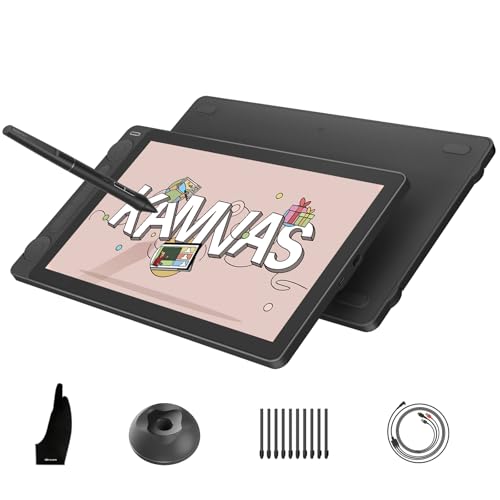
Huion Kamvas 13 (Gen 3)
Specs
- Display: 13.3-inch fully laminated IPS screen, 1920 x 1080
- Pen pressure levels: 16,384 levels, PenTech 4.0 battery-free pen
- Color: 99 percent sRGB color gamut
- Controls: dual dial controllers plus press keys
- Connectivity: USB-C connection to computer
- Display details: 60 Hz refresh, 220 nits brightness, 1000:1 contrast ratio
- Size: 361.2 x 202.8 x 11.7 mm
- Compatibility: Windows, macOS, Android devices
The Kamvas 13 (Gen 3) suits buyers who want a pen display and the newest pen performance. Its PenTech 4.0 stylus reports 16,384 pressure levels, four times the Wacom One pen above, giving fine control at the light end of a stroke where sketch lines and soft blending begin. The fully laminated Full HD screen keeps the pen tip visually close to the line, and anti-sparkle canvas glass cuts glare while adding a controlled, paper-adjacent feel.
Color coverage steps up to 99 percent sRGB, suiting photo and design work where you judge color on the surface you draw on. Dual dials handle continuous adjustments, zooming, timeline scrolling, or brush size, far more gracefully than repeated button taps. For artists moving up from a pad, teachers annotating on screen, and editors who want dial control, this is the most fully featured display here.
Comparison Summary
For a small desk, the Wacom Intuos Small offers 4,096 levels, four keys, and mature Chromebook and driver support in the smallest body here, while the Huion Inspiroy H640P raises the pen to 8,192 levels and 5,080 lines per inch, adds six keys, and includes Linux support. For a large screenless canvas, the XPPen Deco 01 V3 stands alone, with a 10 by 6.25 inch area, 16,384 levels, 60-degree tilt, and eight keys, provided your desk can hold it.
For drawing on screen, the two 13.3-inch displays differ in pen and controls more than size. The Wacom One 13 pairs a 4,096-level tilt-sensitive pen with a combined-cable setup and broad Chromebook support. The Kamvas 13 (Gen 3) pairs a 16,384-level pen with wider sRGB coverage, a laminated anti-sparkle screen, USB-C, and dual dials.
FAQ
Do I need a pen display, or is a screenless tablet enough?
A screenless tablet is enough for most drawing, editing, design, and note-taking, and it takes less desk space with a simpler cable setup. The adjustment is drawing on the desk while watching the monitor, which most people manage within a few sessions. A pen display removes that adjustment and helps with precise line placement, tracing, and annotation, if your desk and ports can support it.
Will these tablets work with my Chromebook or phone?
Some will, with limits. The Wacom Intuos Small and Wacom One work with compatible Chromebooks for pen input, and the Deco 01 V3 lists ChromeOS support, though full key customization generally needs the Windows or Mac driver. The Huion pads and the XP-Pen also connect to many Android phones for sketching and notes, usually using part of the active area. None replaces a computer for full desktop drawing software.
Which active area size should I choose for notes and office work?
Choose a small area, around 6 by 4 inches, for handwriting, signatures, document markup, and photo retouching on a laptop: hand travel is short and the pad fits beside a keyboard. Choose a 10 by 6 inch pad or a 13.3-inch display if you annotate wide documents, teach on a shared whiteboard, draw diagrams with long strokes, or work on a large monitor.
What software can I use with a drawing tablet?
Any program that accepts pen or mouse input will accept these tablets, and pressure and tilt work in programs that support them. Common choices include Photoshop and Illustrator for design and editing, Clip Studio Paint and Krita for drawing and comics, MediBang Paint for lighter illustration, and OneNote, whiteboard apps, and PDF editors for notes and annotation.
Conclusion
The best drawing tablet matches the desk and computer you already have. Pick the Wacom Intuos Small for a compact, reliable first tablet, the Huion Inspiroy H640P for finer pen resolution in the same footprint, or the XPPen Deco 01 V3 for a large screenless canvas with tilt. Pick the Wacom One 13 for an established draw-on-screen experience, or the Kamvas 13 (Gen 3) for a newer display with a 16,384-level pen, wider color coverage, and dial control. Set up the driver carefully, map the keys to commands you use constantly, and give yourself a week of daily use.
More from Amazon
Programs that pair well with the guide above. Offers and eligibility are set by Amazon and may change.
Collect the home and kitchen items you want in one registry that guests can shop from.
Create a wedding registrySet up recurring deliveries of everyday items on eligible products. Terms and savings are set by Amazon.
Explore Subscribe & SaveFree shipping on eligible items, Prime Video and more. Eligible new members can start with a free trial.
Start a Prime free trialAudiobooks and podcasts to listen to on the go. Eligible new members can start with a free trial.
Try Audible freeAs an Amazon Associate we earn from qualifying purchases.


Write Your Review
No reviews yet. Be the first to share your experience!